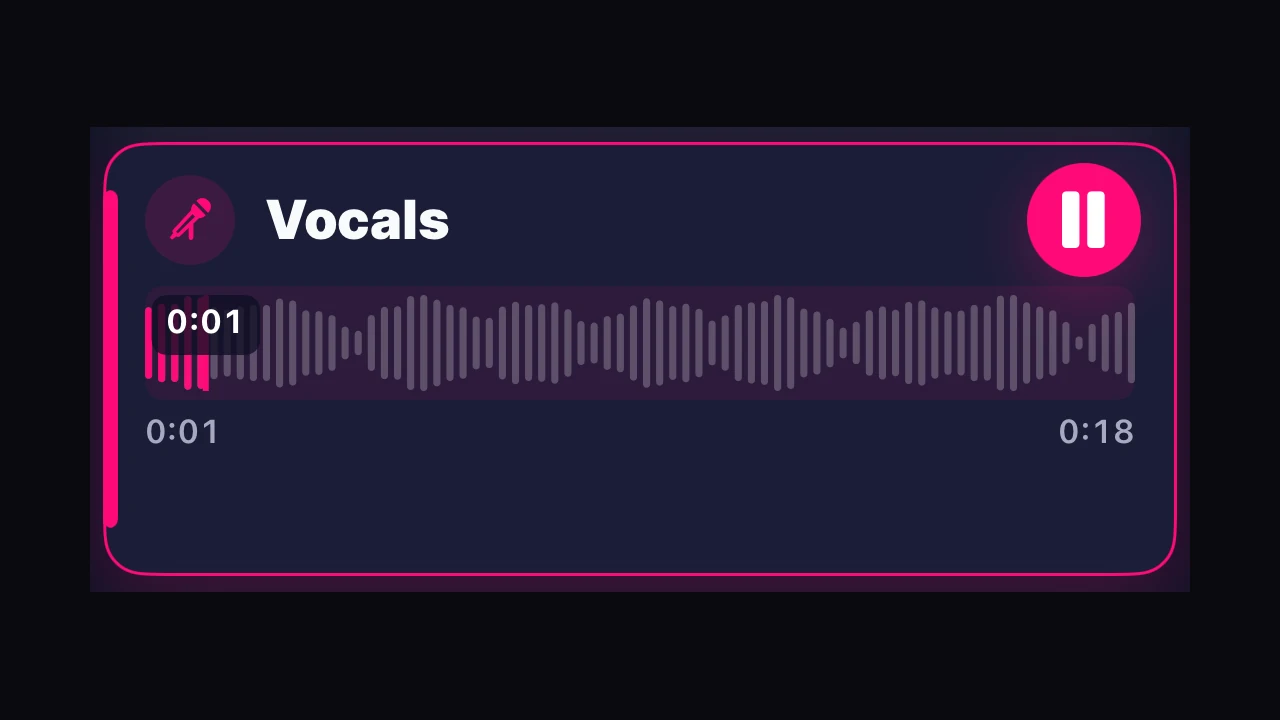
Direct answer. Echo’s Audio Studio includes Acapella Extractor, which creates vocal and instrumental outputs from a mixed song while keeping Original available for comparison. Choose a file, trim it if needed, review the credit amount, then select and play Vocals on the result screen. To save that track on iPhone, tap the down-arrow beside Share Vocals and finish the iOS Files Save action. Extraction separates the supplied recording; it does not create a new performance or guarantee studio-clean stems.
Key takeaways
- Choose Vocals when you want the singer’s audio, or Instrumental when you want the backing without the singer.
- In the observed iPhone flow, the entry is Audio Studio → Acapella Extractor. The result screen is labeled Vocal Remover.
- Before trimming, check that the source meets the duration requirement.
- Review the credit requirement shown on the confirmation screen; it can vary.
- On the result screen, Original, Vocals, and Instrumental are separate selectable tracks. The download arrow exports the selected track.
Vocals or instrumental: which track should you choose?
| Track | What it gives you | Choose it when |
|---|---|---|
| Original | The supplied mix | You want to compare the result with the source |
| Vocals | The extracted vocal audio | You want to hear or save the singer from the mix |
| Instrumental | The extracted backing audio | You want a version with the vocal reduced or removed |
These are extracted versions of a mixed recording. They are not the original studio stems, and separation can leave some musical bleed or vocal residue.
What do you need before starting?
Use an audio file you can select from the iPhone file picker. The source must be longer than 5 seconds.
Echo’s first-use How Echo uses AI disclosure appeared in this walkthrough. Read it and choose Agree & Continue if you want to proceed. This screen is a first-use disclosure, not a step shown on every extraction.
The confirmation screen gives the current credit requirement before processing. Review it before continuing.
How do you extract vocals in Echo on iPhone?
Captured on iPhone 12 with Echo 5.3.2 (5218), October 17, 2026. The steps follow the labels shown in that run.
1. Open Acapella Extractor
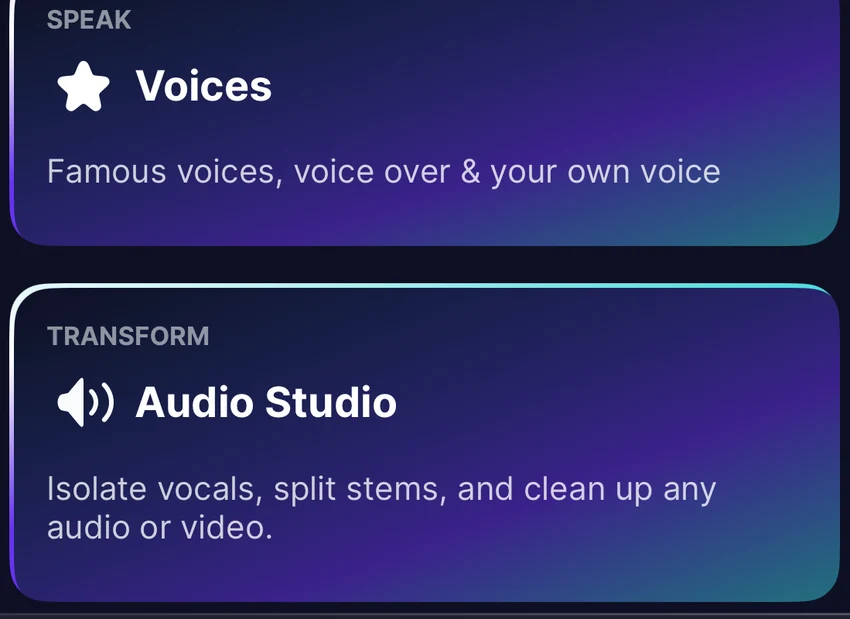
From Home, open Audio Studio, then choose Acapella Extractor. Echo described it as “Pull a clean vocal from any track.”

2. Read the first-use AI notice
The How Echo uses AI notice offers Agree & Continue and Not now. Read the notice and choose Agree & Continue to continue this flow.

3. Continue to file selection
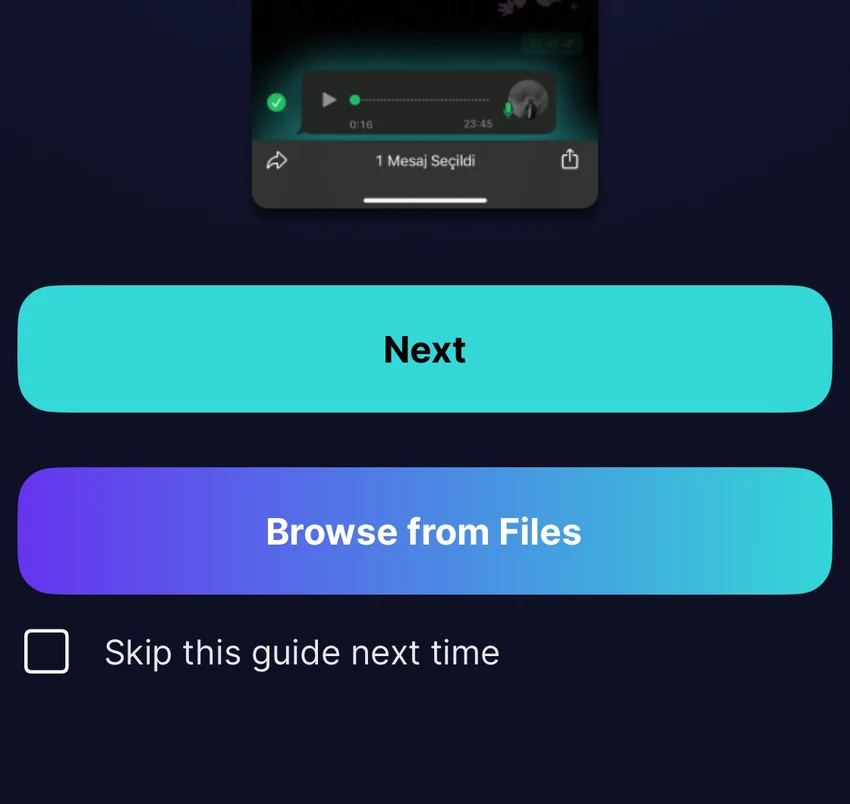
On Select your audio file, tap Next to reach the import instructions.

4. Choose Browse from Files
The Click Share guide shows Browse from Files as the direct route used here. Choose it to open Apple’s Files picker. The optional skip-guide checkbox was left unchanged in this walkthrough.
5. Select an audio file
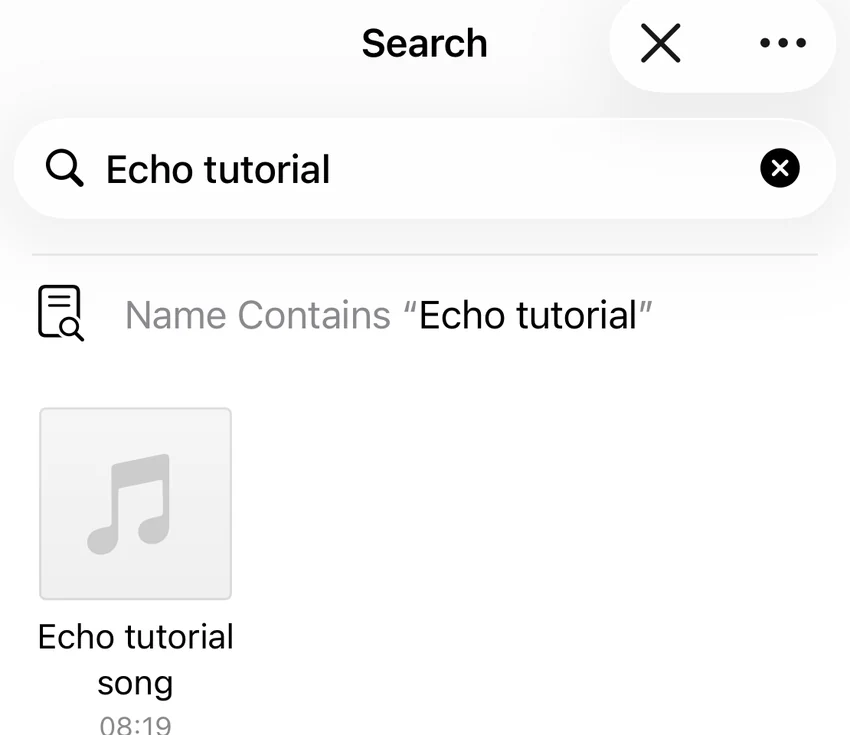
Choose your audio file in Files. The captured test used a nonpersonal tutorial audio file. Your own file and folder will differ.
6. Trim the source, then confirm
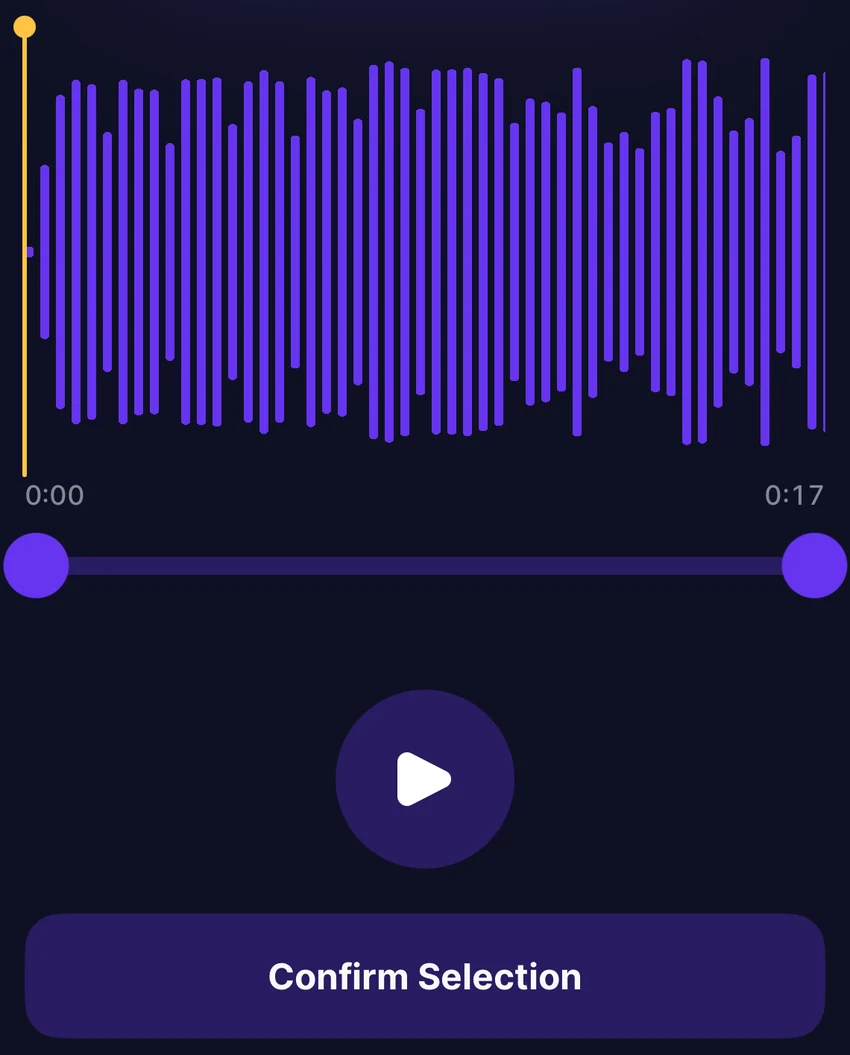
On Trim the Sound, preview the audio and adjust the trim handles if you want a shorter section. Tap Confirm Selection when ready.
7. Name this extraction
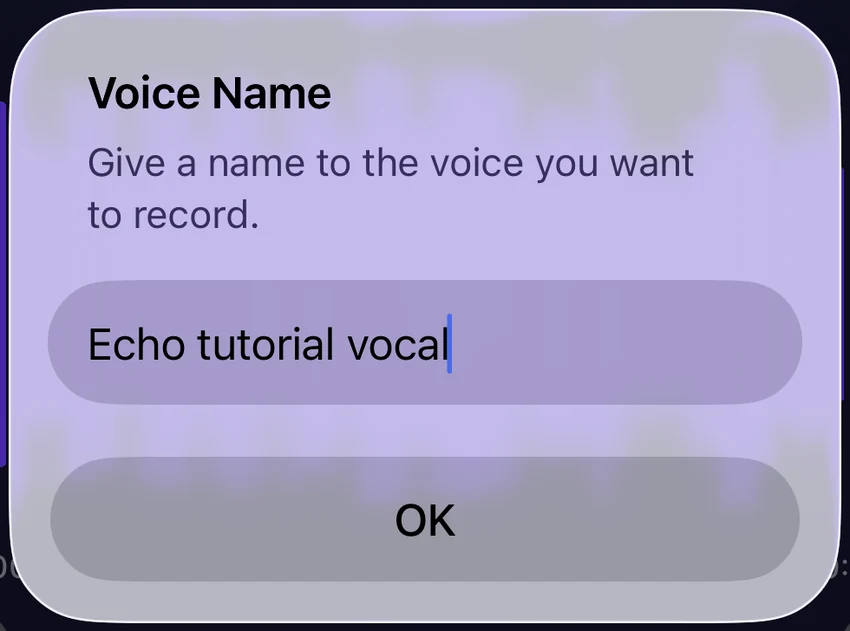
The Voice Name alert asks for a name. Enter a label and tap OK. This names the extraction in Echo; it does not clone the singer’s voice.
8. Review credits and start separation
The Vocal Remover confirmation screen shows Listen and confirm your audio and Split Vocals & Instrumental. Review the credit amount shown on your screen, then choose the split action if you want to continue. The amount shown here can vary between runs.

9. Wait for the result
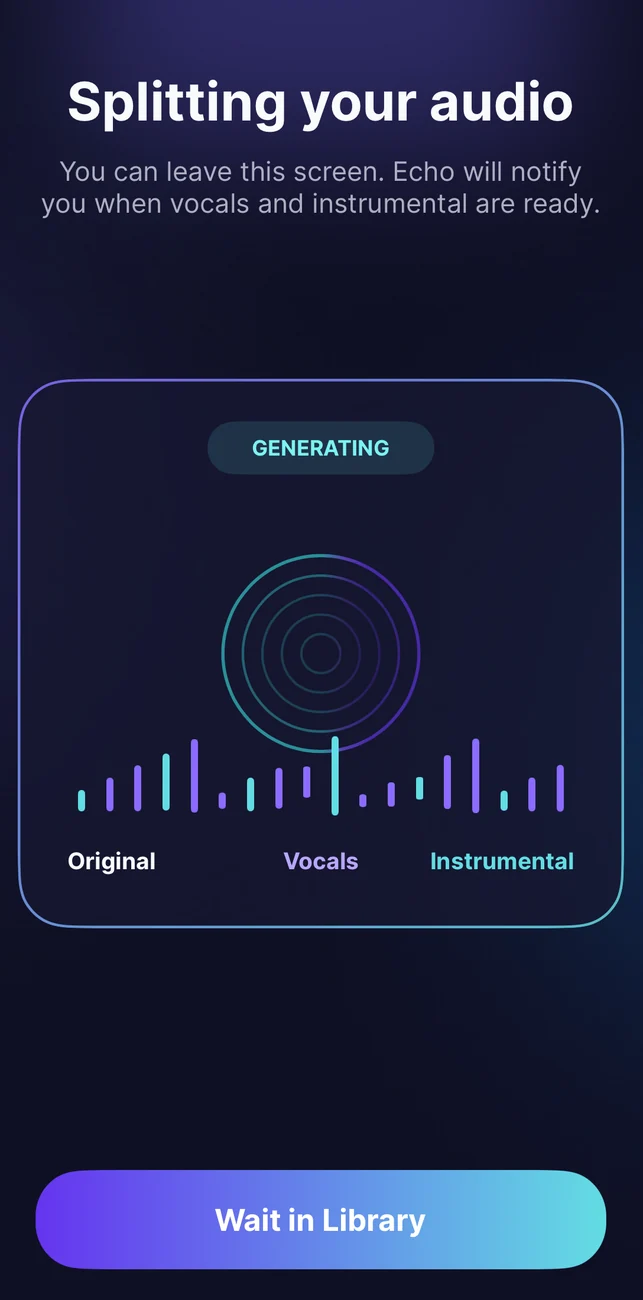
Echo shows Splitting your audio while it processes the file. The screen offered Wait in Library, so you can leave that view. Processing time varies.
10. Select and play Vocals
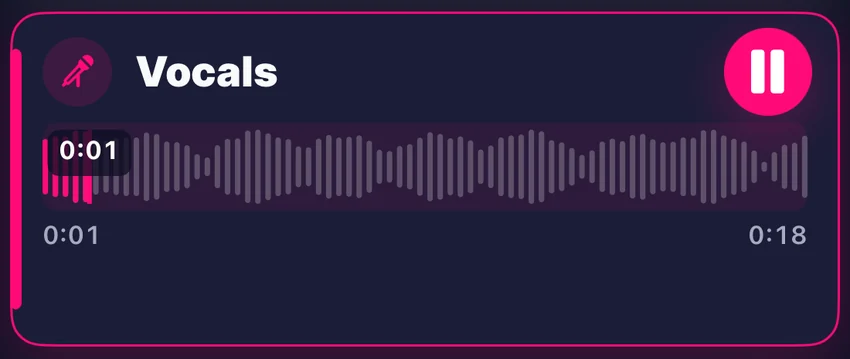
When processing finishes, the Vocal Remover result shows Original, Vocals, and Instrumental. Tap the Vocals row to select it, then use its playback control to listen. Preview Vocals and compare it with Original to decide whether the result suits your use.

11. Save the selected track
With Vocals selected, tap the down-arrow beside Share Vocals. In the iOS Files Save dialog, choose where to save the export and tap Save. The walkthrough saved an M4A file and then verified it in Files. You can choose a different folder; the captured folder is only an example.



What can affect the result?
Vocal separation works on a mixed recording, so sounds that overlap in pitch or timing can remain in either output. Treat Vocals and Instrumental as extracted tracks for listening or further editing, not as a guaranteed replacement for studio stems. Echo’s result screen keeps the Original available so you can compare the supplied mix with both outputs.
If the split does not start, confirm the selected source and review any message in the app. Review the credit requirement before confirming the split.
Not for you
This workflow may not fit if you need isolated studio masters, separate lead and backing singers, a new singer, voice cloning, or perfectly clean karaoke audio. Echo extracts vocal and instrumental audio from the mix you provide; it does not promise those other outcomes.
Frequently asked questions
Does Echo extract vocals or remove them?
The result screen provides both Vocals and Instrumental tracks alongside Original. Choose Vocals to hear or save the extracted singer; choose Instrumental for the backing track.
Does the selected trim need to be longer than 5 seconds?
The source file must be longer than 5 seconds. The duration check reads the source duration, not the selected excerpt duration. A trimmed export is checked against 30 MiB; that is not a universal import-size limit.
How many credits does vocal extraction cost?
The confirmation screen shows the current credit requirement. This walkthrough displayed 200 credits, but that amount is configurable and should not be treated as a fixed price.
Can I save only the vocal track?
Yes. Select Vocals, tap the down-arrow beside Share Vocals, choose a destination in Files, and tap Save.
Does this create a new singer or recover studio stems?
No. It separates vocal and instrumental audio from the supplied mixed recording. It does not create a new performance or promise original studio stems.
Try Echo’s vocal extractor
Echo’s Audio Studio offers Acapella Extractor for separating vocal and instrumental tracks. Review the credit requirement shown in the app before you start. Download Echo.